- Refine the MaLa Layout. I like the way things are laid out but I want to change the font to something more "girly" - the games are displayed in Arial right now and it just doesn't blend in. I also want to increase the size of the font, if possible although right now any letter like 'g' or 'j' or something that hangs low gets cut off a bit... I also want to incorporate some of the colored flowers from the background of the marquee into the background of the layout... I don't know... I need to teach myself how to make these things.
- Refine my Gamelists. I don't know how to use the "Tree" functions in MaLa yet - right now I have an "All Games" list, a "Horizontal" list and a "Vertical" list and they are still too cumbersome to sort through. I'm thinking I need to separate them into categories like "Puzzle", "Classic", "Shooter", "Fighter", etc. I also need to go through them and remove the duplicates and generally crappy games that no one will ever play (which there are quite a lot of).
- Install the microswitches behind the coin door return buttons for "insert coin" - right now I repregrammed the "Pause" button as "Coin" because it was such a pain to keep inserting quarters for credits. This is actually a decent solution (just get rid of pause) but after playing the other day I realized that interuptions are frequent no matter who is playing so a pause button is essential.
- Install the coin box. This should take 10 minutes.
- Possibly relocate the power button. Right now if I open the coin door I can reach inside and hit power on the computer itself to power on and off. It works I guess but I'm thinking of relocating it to somewhere on the cabinet (I don't know where yet though - probably the rear of the cabinet). I don't want my kids opening up the cabinet every time they want to play.
- Apply the vinyl button decals. I had some pink vinyl button decals made to apply to the black admin buttons. They are really cool - the Start buttons are little girl icons. This shouldn't take too long.
- Make a pink dustwasher for the joystick. I want to take a piece of 1/8" thick plexiglass and make a 2-1/2" diameter circle and paint the bottom pink and then polish the edges. Details like this and the button decals will really make the control panel stand out I think.
Tuesday, November 13, 2007
Update!
Finally an update! Well, I haven't actually done anything on the cabinet but I have made a FINAL list of things that I need to do. I'm posting them here so I don't forget.

Monday, October 22, 2007
Pink Skin!
Now that the cabinet is working and the computer is mostly configured it's time to start polishing the details. The first order of business is replacing the "gamelauncher" skin on my front end with something a little nicer - and customized for Bella.
 When the cabinet is first turned on it loads directly to the MaLa front-end with the "gamelauncher" skin and looks like the picture to the right. There's nothing "wrong" with it I guess - it displays all of the game names over top of a screenshot. It's simple and easy to use but I really want to tie the front end in with the rest of the design - and that means making it pink!
The great thing about MaLa is that it is totally customizable but unfortunately you need some computer skills to get the job done. I was lucky enough to have superbigjay over at the BYOAC forums take a few minutes away from his awesome project to design something for Bella's Arcade.
Check out the results:
 It looks great! The main gamelist appears in the largest box on the left and the screenshot for each game appears in the large box on the right as you scroll through the list. The other rectangles contain information like the name of the Gamelist (Favorites, Maze, Puzzle, etc.) or the controls (4-way/1 button, etc.). This is all customizable so I can get it looking however I want.
The design isn't finalized yet - I still need to pick a "girly" font to display the game names (Arial is the default and it's a little plain) and finalize the type of information I want to display in each panel but it's a great start. The cabinet's pink theme is really coming together!
 When the cabinet is first turned on it loads directly to the MaLa front-end with the "gamelauncher" skin and looks like the picture to the right. There's nothing "wrong" with it I guess - it displays all of the game names over top of a screenshot. It's simple and easy to use but I really want to tie the front end in with the rest of the design - and that means making it pink!
The great thing about MaLa is that it is totally customizable but unfortunately you need some computer skills to get the job done. I was lucky enough to have superbigjay over at the BYOAC forums take a few minutes away from his awesome project to design something for Bella's Arcade.
Check out the results:
It looks great! The main gamelist appears in the largest box on the left and the screenshot for each game appears in the large box on the right as you scroll through the list. The other rectangles contain information like the name of the Gamelist (Favorites, Maze, Puzzle, etc.) or the controls (4-way/1 button, etc.). This is all customizable so I can get it looking however I want.The design isn't finalized yet - I still need to pick a "girly" font to display the game names (Arial is the default and it's a little plain) and finalize the type of information I want to display in each panel but it's a great start. The cabinet's pink theme is really coming together!
Tuesday, October 09, 2007
Quick Update
Argh! I've been using MAME .118u2 with the hi score patch (compiled myself using Mr. Do!'s excellent tutorial) but Mappy and Super Pac-man were giving me errors when I tried launching them. Apparently there is a known issue with the mappy.c driver in MAME .118u2 which both games use to run. This is completely unacceptable.
I decided to recompile MAME using version .119u3 with the hi score patch hoping that the games would work again and I was right - they worked! Unfortunately, Galaga is no longer playable. This is doubly unacceptable. Galaga is on the short list of must-have games for an arcade cabinet. I'm missing a file called 51xx.bin which was added in the Galaga file starting with MAME .119u3 so tonight I have to recompile yet again and go back to MAME .119u2. What a pain - hopefully I can get everything working!
I'm not sure why I posted this... maybe this information will help someone else out there. I don't know.
I decided to recompile MAME using version .119u3 with the hi score patch hoping that the games would work again and I was right - they worked! Unfortunately, Galaga is no longer playable. This is doubly unacceptable. Galaga is on the short list of must-have games for an arcade cabinet. I'm missing a file called 51xx.bin which was added in the Galaga file starting with MAME .119u3 so tonight I have to recompile yet again and go back to MAME .119u2. What a pain - hopefully I can get everything working!
I'm not sure why I posted this... maybe this information will help someone else out there. I don't know.
Monday, October 08, 2007
The Coin Door (Wiring)
One of the last things I have left to do on this cabinet other than configure the software is to get the coin door working. I bought a Happs "Small Single Coin Door" which comes with two $0.25 coin mechs to accept quarters (or tokens).
 The setup is pretty basic - a microswitch is tripped when a quarter is inserted into the coin slot which sends a signal just like any other button press on the cabinet would do. I decided to wire both the player 1 and player 2 coin slots to the same input on my U360 joystick wiring harness so no matter which slot the coin is put in it will register as a "credit" for player 1. This doesn't pose a problem because most of the alternating 2 player games don't care which coin slot the quarter is inserted into. If two coins are entered into the same slot you press the "Player 2 Start" button for a 2 player game. Also, since the cabinet does not have 2 player simultaneous controls all of those games will be available in 1 player mode only.
Anyway, wiring up the microswitches was a snap - I wired the NO (normally open) pin on each switch to the last wire on the U360 wiring harness (which has been set to "insert coin") and the bottom ground pin on each switch to another ground wire on the control panel completing the loop. I should note that the microswitches on my coin door had the NO and NC (normally closed) pins reversed compared to the standard white pushbutton microswitch. It took me a minute to figure out when nothing was happening when I inserted the coin. Simple!


The setup is pretty basic - a microswitch is tripped when a quarter is inserted into the coin slot which sends a signal just like any other button press on the cabinet would do. I decided to wire both the player 1 and player 2 coin slots to the same input on my U360 joystick wiring harness so no matter which slot the coin is put in it will register as a "credit" for player 1. This doesn't pose a problem because most of the alternating 2 player games don't care which coin slot the quarter is inserted into. If two coins are entered into the same slot you press the "Player 2 Start" button for a 2 player game. Also, since the cabinet does not have 2 player simultaneous controls all of those games will be available in 1 player mode only.Anyway, wiring up the microswitches was a snap - I wired the NO (normally open) pin on each switch to the last wire on the U360 wiring harness (which has been set to "insert coin") and the bottom ground pin on each switch to another ground wire on the control panel completing the loop. I should note that the microswitches on my coin door had the NO and NC (normally closed) pins reversed compared to the standard white pushbutton microswitch. It took me a minute to figure out when nothing was happening when I inserted the coin. Simple!
Everything works like it should but I realized after about 10 minutes of playing on the cabinet that fumbling for quarters/tokens every single time I wanted to play something was a huge pain. I think I'm going to try and rig the coin return buttons to act as "insert coin" buttons when pressed which should eliminate the need to have quarters/tokens on hand all the time.
I'm not 100% sure how I'm going to do this but I don't think it will be too hard. Stay tuned.
Tuesday, October 02, 2007
New "Punch-List"
Well, I'm coming down to the wire... there's really not much left to do on this cabinet other than software configuration and getting the coin door up and running. I figured I'd make another "to-do" list just to keep me moving forward - this one is really nit-picky but here goes:
Construction
We will be having some friends over to the house in about two weeks so I'll try to have it 100% finished by then - I'm also coming up on the year anniversary of starting this thing which is pathetic so I'd like to finish before that day passes too.
Construction
- Wire coin door to U360 wiring harness (assigned to "5" in MAME)
- Rig the coin reject buttons to register a credit when pressed
- Power the LEDs behind the coin slots
- Install a coin box to catch the quarters/tokens (cardboard?)
- Apply pink vinyl button labels
- Relocate power button from front of PC to rear panel of cabinet
- Relocate volume knob from speakers to somewhere on cabinet
Computer Configuration
- Finish tailoring my Horizontal Gamelist (vertical one is finished)
- Change font in MaLa layout for game names to something girly - make it pink!
- Download and install "snaps" for background of gamelist
- Configure 45-degree maps for the U360 joystick (for Q*bert)
- Configure MaLa to play "Arcade Ambiance" when browsing gamelists
We will be having some friends over to the house in about two weeks so I'll try to have it 100% finished by then - I'm also coming up on the year anniversary of starting this thing which is pathetic so I'd like to finish before that day passes too.
Friday, September 28, 2007
The Plug: Part 3
It's installed - and more importantly, it works! Or at least it seems to work - no sparks, no smoke and the SmartStrip has power so I'm reasonably sure the installation was done properly. After much discussion about the right and wrong way to wire this thing over at BYOAC we collectively figured out which wires from the SmartStrip should be connected to which wires on the plug recepticle (I hope). The last step to installing the plug recepticle was to cut a rectangular hole 1-1/16" x 1-13/16" out of the back panel.
Easy, right? Wrong. It took over 2 hours to cut out the hole accurately. After laying out the hole I started by drilling out as much material as possible using a large drill bit in each corner. Then using a very small keyhole saw I connected the holes to remove most of the material. That wasn't so bad - what was excruciating was trying to square everything up to the lines. I ended up using a metal file because I couldn't get one of my chisels in there to really do anything due to the small size of the hole. I thought this would take 5 minutes!
Here's the hole pre-installation:
 It's probably the ugliest part of the entire cabinet - I've tried to plan each cut out and make the lines as clean as possible but this is just a mess. Thankfully there is a bezel around the plug recepticle that will hide everything.
And here's the hole post-installation - I secured the plug recepticle to the cabinet using two screws and then added some screw caps for a "finished" look:
 Here's a close-up without the screws holding it in place:
 And here's a super close-up of the finished installation. I still have to erase the layout lines that I made since I couldn't decide where to put the thing and still leave room on the inside to mess around:
 It looks pretty nice.... or at least nicer than a round hole with a plug hanging out.
The only thing left to do was crawl inside and connect the wires. I reversed the black and white wires from my previous post - this is what all the discussion over at BYOAC was about. We were having a hard time figuring out which wire was "hot" and which was the negative one. Turns out U.S. Electrical Code mandates that "hot" wires are black, white wires are neutral and green wires are ground.
Finally, here are some shots of the inside - as you can see it's quite a mess. I mounted the Smart Strip on the inside of the cabinet - it's ready for the computer! I also used some velcro to hold the plastic box containing the wire hack against the side panel.

 Maybe I'll paint the interior of the next cabinet I build to really give it a professional look but that's probably crazy talk.
I did take the time to test everything - I hooked up the computer and played a few games of Ms. Pac-Man and Galaga. I have never been more excited about this hobby than I was when I fired it up for the first time and everything worked like it should - with the press of a button, the marquee light, speakers and monitor came on and the computer booted straight to a random game on my gamelist - the cab is fully playable and it's awesome. I still have some software tweaking to do and I have to hook up the coin door but I'm 99.9% done. What a feeling!
Easy, right? Wrong. It took over 2 hours to cut out the hole accurately. After laying out the hole I started by drilling out as much material as possible using a large drill bit in each corner. Then using a very small keyhole saw I connected the holes to remove most of the material. That wasn't so bad - what was excruciating was trying to square everything up to the lines. I ended up using a metal file because I couldn't get one of my chisels in there to really do anything due to the small size of the hole. I thought this would take 5 minutes!
Here's the hole pre-installation:
It's probably the ugliest part of the entire cabinet - I've tried to plan each cut out and make the lines as clean as possible but this is just a mess. Thankfully there is a bezel around the plug recepticle that will hide everything.And here's the hole post-installation - I secured the plug recepticle to the cabinet using two screws and then added some screw caps for a "finished" look:
Here's a close-up without the screws holding it in place:And here's a super close-up of the finished installation. I still have to erase the layout lines that I made since I couldn't decide where to put the thing and still leave room on the inside to mess around:It looks pretty nice.... or at least nicer than a round hole with a plug hanging out.The only thing left to do was crawl inside and connect the wires. I reversed the black and white wires from my previous post - this is what all the discussion over at BYOAC was about. We were having a hard time figuring out which wire was "hot" and which was the negative one. Turns out U.S. Electrical Code mandates that "hot" wires are black, white wires are neutral and green wires are ground.
Finally, here are some shots of the inside - as you can see it's quite a mess. I mounted the Smart Strip on the inside of the cabinet - it's ready for the computer! I also used some velcro to hold the plastic box containing the wire hack against the side panel.
Maybe I'll paint the interior of the next cabinet I build to really give it a professional look but that's probably crazy talk.I did take the time to test everything - I hooked up the computer and played a few games of Ms. Pac-Man and Galaga. I have never been more excited about this hobby than I was when I fired it up for the first time and everything worked like it should - with the press of a button, the marquee light, speakers and monitor came on and the computer booted straight to a random game on my gamelist - the cab is fully playable and it's awesome. I still have some software tweaking to do and I have to hook up the coin door but I'm 99.9% done. What a feeling!
Wednesday, September 26, 2007
The Plug: Part 2
It's about time. After a month I finally manned up and cut open my SmartStrip plug. The goal is to splice the plug to a recepticle on the exterior of the rear panel of the cabinet. I'm still a little nervous about this process but I'm reasonably positive (99%) that I did this safely and correctly.
I bought a plastic box at Home Deopt for $2 and the idea is to completely seal off the wiring block and any chance of someone touching a live wire. The wire from the SmartStrip goes in one end and the wires from the plug recepticle go in the other - pretty basic stuff. This is about as safe as I think I can make it.
Here's the box:
 And here is kind of sort of what I'm trying to accomplish... actually, I don't even know why I took these pictures but here you go:

 Here's the exciting "before" picture of the plug. Wow.
 And here is the "after" shot. It was like ripping off a band-aid. I just closed my eyes and made the cut with my trusty utility knife.
 At this point there was no turning back. Inside, there were three wires representing positive (white), negative (black) and ground (green). The next step was stripping each of these wires to expose about 1/4" of the interior copper wire. Thie next picture shows the three wires (but not stripped).
 I matched these wires up to the wires in the wiring block that spacies from BYOAC set up for me. All I really had to do was screw them into the wiring block attached to the plug recepticle. This is how it ended up before I closed the plastic box:

 Here are the final shots of everything all closed up:

 I'm not totally finished with this (I should be tonight) and I plan on wrapping the wiring block in electrical tape before closing up the plastic box for good. Also, the last thing I want to do is somehow cover the back of the plug recepticle with either electrical tape or some sort of foam - I can still see metal sticking out and I can only assume that once the cabinet is plugged in it will be "hot" all the time whether the computer is on or off.
I bought a plastic box at Home Deopt for $2 and the idea is to completely seal off the wiring block and any chance of someone touching a live wire. The wire from the SmartStrip goes in one end and the wires from the plug recepticle go in the other - pretty basic stuff. This is about as safe as I think I can make it.
Here's the box:
And here is kind of sort of what I'm trying to accomplish... actually, I don't even know why I took these pictures but here you go: Here's the exciting "before" picture of the plug. Wow.And here is the "after" shot. It was like ripping off a band-aid. I just closed my eyes and made the cut with my trusty utility knife.At this point there was no turning back. Inside, there were three wires representing positive (white), negative (black) and ground (green). The next step was stripping each of these wires to expose about 1/4" of the interior copper wire. Thie next picture shows the three wires (but not stripped). I matched these wires up to the wires in the wiring block that spacies from BYOAC set up for me. All I really had to do was screw them into the wiring block attached to the plug recepticle. This is how it ended up before I closed the plastic box: Here are the final shots of everything all closed up:I'm not totally finished with this (I should be tonight) and I plan on wrapping the wiring block in electrical tape before closing up the plastic box for good. Also, the last thing I want to do is somehow cover the back of the plug recepticle with either electrical tape or some sort of foam - I can still see metal sticking out and I can only assume that once the cabinet is plugged in it will be "hot" all the time whether the computer is on or off.I want to be sure 1000% sure that there is zero chance of something going wrong or someone getting hurt. My daughter is only 3 and she's curious. If she managed to open up the door on the front and crawl inside I don't want to have to worry about her getting hurt.
That's all for now.
Wednesday, August 22, 2007
The Plug: Part 1
I am about to try and hack a SmartStrip by basically cutting off the plug and wiring it to a different plug/electric socket. I want to achieve a "finished" look on the outside of my cabinet as well as be able to disconnect the power cord if I feel like it. Plus, I've never done something like this before and I'm always up for learning something new.
I'm not quite sure how to do this yet but I will post my progress as I go. Anyway, there are three wires coming out of the plug thingy and (presumably) three wires in the SmartStrip after I cut off the plug - I'm just not sure which wire from the plug connects with which wire from the SmartStrip. Check out the pics:


I'm not quite sure how to do this yet but I will post my progress as I go. Anyway, there are three wires coming out of the plug thingy and (presumably) three wires in the SmartStrip after I cut off the plug - I'm just not sure which wire from the plug connects with which wire from the SmartStrip. Check out the pics:
Kind of boring but I'm at the tedious part of the project now... oh well.
Friday, August 17, 2007
The Master Plan
The plans are here! Well, I finally dug them out of the garage and brought them to work so I could scan them and post them here. The dimensions aren't exact but they are close enough, I guess. I wanted an "80%" cabinet so I downloaded the Ms. Pac-man plans from Jakobud's site and shrunk all the dimensions using my slick math skills. I didn't cut things out perfectly due to the weird conversions (like 80% of 1/16" is kind of tough to measure) but it came out great anyway.


Monday, August 13, 2007
Minor Progress and a "To-Do" List
OK, after a month of nothing I think I'm back for real.
I completed the computer build and got (most) everything working. I had a bit of trouble with the video card because if it was connected to the motherboard it would default everything to the DVI-out port so I had to buy a DVI-VGA plug converter thingy. I installed Windows XP Professional and it seems to be operating pretty fast (much faster than my old Gateway).
I loaded up MAME and MaLa really quick last night, tweaked the settings for a vertical layout and the games seem to be running in full screen!!!! FINALLY!!! Tonight I plan to finish the computer setup on the cabinet.
I have to:
I completed the computer build and got (most) everything working. I had a bit of trouble with the video card because if it was connected to the motherboard it would default everything to the DVI-out port so I had to buy a DVI-VGA plug converter thingy. I installed Windows XP Professional and it seems to be operating pretty fast (much faster than my old Gateway).
I loaded up MAME and MaLa really quick last night, tweaked the settings for a vertical layout and the games seem to be running in full screen!!!! FINALLY!!! Tonight I plan to finish the computer setup on the cabinet.
I have to:
Compile a version of MAME that can save high scores and disables the warning screensGet the fatfingers MaLa plugin working properly (for the Ultimarc 360 joystick)- Create a solid vertical gamelist
- Set the computer to boot straight to MaLa
- Cut hole in back of the cabinet and install the exterior plug
- Splice new plug to SmartStrip
- Wire the computer power button to a button on the cabinet somewhere
- Wire the coin door
- Touch-up paint
- Apply vinyl button decals
- Figure out a way to control the volume of everything
That's only like an afternoon's worth of work!
In other (not so) exciting news, I've actually made the executive decision to NOT use the side art that I had printed. It's a waste of $50 but everyone who has seen the sideart in person (held in place by tape) has said the cabinet looks better without it and I tend to agree. I love the art and it came out great but I think that for this project less is more and I'll be better off without it.
I really want to finish this thing so I can start the next one (I hope my wife isn't reading this...).
Tuesday, July 31, 2007
Time To Finish This Thing!
OK. I haven't made any progress recently but I think I'm ready to. We have settled into a pretty good schedule with the new baby and I am generally less tired every day. I'm hoping to resume work on Bella's Arcade this weekend. I might as well since we are cooped up in the house for the next few weeks until it is safe to take the baby out in public.
Since my last post I installed all of the computer components into the case I bought but nothing happened when I tried to power it on. I think I got some of the wires mixed-up. It is a pain trying to connect the pins to the power button wires and I can't really tell where everything is supposed to go. I hope to work out the kinks tonight and at least get XP up and running.
Stay tuned!
Since my last post I installed all of the computer components into the case I bought but nothing happened when I tried to power it on. I think I got some of the wires mixed-up. It is a pain trying to connect the pins to the power button wires and I can't really tell where everything is supposed to go. I hope to work out the kinks tonight and at least get XP up and running.
Stay tuned!
Monday, July 16, 2007
Jack's Arcade
Looks like I'll be starting another project in the next 3 years or so. Bella's Arcade is currently on hold due to the birth of her brother Jack. There's not much left to do but finding the time will be tough over the next few weeks as I adjust to the new schedule.
All that's left is the computer installation/configuration and some touch-up work on the paint job on the back of the cabinet. The new computer parts arrived last week and I'll be putting it together soon, I hope. Here's what I bought:
Hard Drive (80GB)
Processor (Dual Core)
Motherboard
Video Card
RAM (2x512MB)
Power Supply / Case
Now I just have to figure out how to put it all together.
All that's left is the computer installation/configuration and some touch-up work on the paint job on the back of the cabinet. The new computer parts arrived last week and I'll be putting it together soon, I hope. Here's what I bought:
Hard Drive (80GB)
Processor (Dual Core)
Motherboard
Video Card
RAM (2x512MB)
Power Supply / Case
Now I just have to figure out how to put it all together.
Monday, July 02, 2007
Did Someone Say Feet?
Oh yeah... now this is the good stuff. Last night I managed to finally install the plastic feet to the bottom of the cabinet so it won't mar the floor in my house. It was a painful process which took all of 2 minutes to accomplish. First I had to tear open the package (as seen below). Next, I had to peel off the paper on the back of the feet to expose the adhesive. Finally, I had to stick each piece onto the bottom of the cabinet. Sound tough? Now imagine having to do that 4 times.

I know, let's get on with it... I'm in the middle of programming the computer and the cabinet has been moved inside of the house for final testing. So I didn't exactly make my June 30 deadline - no big deal. I should have this thing 100% finished soon though!
I know, let's get on with it... I'm in the middle of programming the computer and the cabinet has been moved inside of the house for final testing. So I didn't exactly make my June 30 deadline - no big deal. I should have this thing 100% finished soon though!
Thursday, June 28, 2007
Monitor Bezel Installation
This is another pretty self-explanatory step. In order to frame the monitor, I decided to use some black matte board - you know, the stuff you use when framing a picture. The only real issue I ran into was finding it. I had to make sure the inside of the matte board was also black so when I cut it to size there wouldn't be a white center or something. I ended up spending about a week looking around for it because places like Michael's and A.C Moore did not carry "black with black core" matte board - they only had "black with white core" matte board. I finally found some at a local art supply store for $3.75 a sheet. It was perfect - and cheap!
Anyway, I ended up just tracing the monitor glass that I already had to size the matte board properly and then with the monitor in place I just measured in from the sides of the cab to the edge of the screen and cut everything out with a sharp razor and a straight edge. It's a good idea to cut it a little oversize and then trim it back to get a tight fit.

 The hardest part was cutting out the interior corners because there is a tendency to over cut with the razor knife and you have to be extra careful if you want a crisp corner. I ended up cutting away from each corner on both sides.
 The next picture shows how the bezel sits on top of the panel surrounding the monitor (it's not laying flat yet as you can tell). There is nothing holding it in place other than gravity - no glue is necessary. It sits in front of the 1/2" lip created by the top edge of the control panel. The glass will sit on top of the bezel leaving about a 1/8" lip. I wanted the matte board and glass to lay flush with the control panel but I didn't take into consideration the thickness of the velcro when planning everything. Oh well, at least there is no chance of it slipping out.


 That's almost it as far as the construction goes. I still have to decide on how to wire up the power plug from the SmartStrip and do a little touch up painting and some other miscellaneous crap but this is pretty much what the finished product will look like.
Next up - installing all of the programs and getting it to actually work!
Anyway, I ended up just tracing the monitor glass that I already had to size the matte board properly and then with the monitor in place I just measured in from the sides of the cab to the edge of the screen and cut everything out with a sharp razor and a straight edge. It's a good idea to cut it a little oversize and then trim it back to get a tight fit.
The hardest part was cutting out the interior corners because there is a tendency to over cut with the razor knife and you have to be extra careful if you want a crisp corner. I ended up cutting away from each corner on both sides.The next picture shows how the bezel sits on top of the panel surrounding the monitor (it's not laying flat yet as you can tell). There is nothing holding it in place other than gravity - no glue is necessary. It sits in front of the 1/2" lip created by the top edge of the control panel. The glass will sit on top of the bezel leaving about a 1/8" lip. I wanted the matte board and glass to lay flush with the control panel but I didn't take into consideration the thickness of the velcro when planning everything. Oh well, at least there is no chance of it slipping out.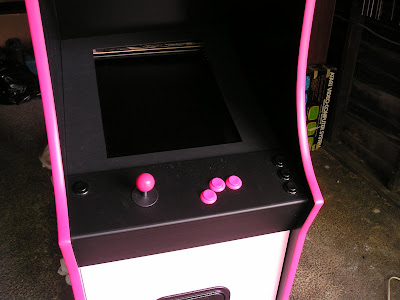 As you can see from the pictures below, with the grey tinted glass laying on top of the black matteboard you can't even tell that there is a monitor in there unless you really look for it. I can't wait to fire up a game because the screen should be the only thing you notice when it's on.
That's almost it as far as the construction goes. I still have to decide on how to wire up the power plug from the SmartStrip and do a little touch up painting and some other miscellaneous crap but this is pretty much what the finished product will look like.Next up - installing all of the programs and getting it to actually work!
Wednesday, June 27, 2007
Control Panel Installation
There's nothing fancy to see here. The only real problems I had to deal with were making sure the control panel did not move at all during gameplay and making sure the control panel was removeable at any time for maintenance or something. My first solution worked perfectly so it turned out to be pretty easy.
I bought some industrial strength velcro from Home depot and put two strips on the lip of the monitor panel that I had previously routed and the matching strips on the top of the underside of the control panel. Once I put the control panel in place it was a very tight fit. The velcro held up nicely and nothing was moving even when I pulled quite hard on the joystick.


The only other issue was holding the bottom portion of the control panel in place. Since there were some strips of wood on either side from when I first assembled the cabinet, I just used some 3" clamps to hold the bottom of the control panel in place. Easy!
Here are the results - it's looking pretty sweet right now.


 Next up - installing the bezel around the monitor.
Monday, June 25, 2007
Update
This past weekend I installed the monitor bezel and the feet on the bottom of the cabinet. The construction part is just about complete.
I also started to really think about splicing the SmartStrip into a plug that gets flush-mounted on the back of the cabinet. I'm just not sure this is the best way to go - the plug will force the cabinet to sit about 1.5" off of the wall... but so will the plug that goes into the wall so I'm not sure it matters. The alternative is to just cut a hole in the back and use a grommet (like the kind found on computer desks to let wires pass through) to feed the plug of the SmartStrip through.
I have to think about this.
Anyway, I have plenty computer configuration to get through this week to keep me busy.
I also started to really think about splicing the SmartStrip into a plug that gets flush-mounted on the back of the cabinet. I'm just not sure this is the best way to go - the plug will force the cabinet to sit about 1.5" off of the wall... but so will the plug that goes into the wall so I'm not sure it matters. The alternative is to just cut a hole in the back and use a grommet (like the kind found on computer desks to let wires pass through) to feed the plug of the SmartStrip through.
I have to think about this.
Anyway, I have plenty computer configuration to get through this week to keep me busy.
The REVISED "Punch List"
I guess I'm going to keep a running list of what I need to do in order to finish - I have to keep pushing forward because I have to have this thing completely finished by the end of June. There are still a bunch of minor things I have to do:
- Cut hole in back of the cabinet and install the exterior plug
- Splice new plug to SmartStrip
- Wire the computer power button to a button on the cabinet somewhere [back?]
- Apply the side art
Make a bezel out of black posterboard/matteboard and install- Wire the coin door
- Touch-up paint
Install feet for the cabinet so it doesn't mar the floor- Install and configure the computer
- Apply vinyl button decals (these are on order)
I am fairly certain that most of this can be completed in an afternoon - hopefully this weekend. The only part I anticipate having trouble with is the configuration of the computer. Sure, I'll have Pac-Man and a bunch of other games up and running but I have a lot more than just getting it to work to do. Here's the short list:
Wipe current computer clean and do a fresh install of XP- Compile MAME so it will save high scores properly and display the proper game information
- Install MAME
- Install MaLa (the front end menu which will launch the games)
- Customizing the art/graphics for the front end (I'm making it pink!)
- Create various .MAP files for the Ultimarc 360 joystick and get them to load upon the launching of a game
- Configure buttons
The computer stuff scares me but I'll muddle through.
Thursday, June 21, 2007
Marquee Installation!
This past weekend I was also able to install the marquee. Is wasn't too difficult but I definitely hit a few snags along the way that I had to think through.
Here is what I started with:
.JPG)
.JPG)
The first thing I did was cut the marquee retainers that I ordered to the proper size. The plastic that the retainer is made out of is pretty thick but it is also brittle and cracked under the pressure from my radial saw so I ended up using a mitre box and hand saw. I cut them a bit oversized (1/32") and then sanded down the ends with some 100 grit sandpaper until I got a tight fit.
 After the holes were marked, I drilled them out using a 1/8" drill bit as shown below. Make sure the retainer is clamped in place as you drill so it doesn't slip.


Here is what I started with:
The first thing I did was cut the marquee retainers that I ordered to the proper size. The plastic that the retainer is made out of is pretty thick but it is also brittle and cracked under the pressure from my radial saw so I ended up using a mitre box and hand saw. I cut them a bit oversized (1/32") and then sanded down the ends with some 100 grit sandpaper until I got a tight fit.
 I toyed with the idea of using velcro to hold the retainer in place but the thickness of the velcro made the retainer sit about 1/16" off of the surface of the cabinet which wasn't going to work. The retainer also needs to be removable so I couldn't just glue it down. I decided to use 4 evenly spaced screws to secure it to the cabinet so the next thing I did was mark off where I wanted the screws to go. I decided on placing the two end screws 1" in from the end of the retainer and then I measured for the other 2 central screws so they would be spaced evenly. To place the holes, I measured up 1/4" from the plastic line that is part of the retainer (you can see it in the pictures).

After the holes were marked, I drilled them out using a 1/8" drill bit as shown below. Make sure the retainer is clamped in place as you drill so it doesn't slip. You should get a nice clean hole for the screw as shown:
 At this point I ran into my first problem. The screw caps I'm using to cover the screws lay very flat and a typical screw kind of slopes outward towards the screw head. The bottom line is that there was no way that the screw would lay flush with the retainer if I didn't modify the hole somehow. I decided to use a larger drill bit and a razor blade to dig out a cone shape for the screw head to sit in.
It was kind of a pain but it worked. I didn't have to be precise because the screw caps cover any imperfections around the hole.
The next step was to cut the marquee and the plexiglass to the proper size. This was pretty easy to do and just required a lot of trial and error. Mamemarquees printed the marquee a little oversized but all it took was a razor and straightedge to cut it to size.
 I also had to cut the plexiglass which I did using my router, a straightedge and a flush trimming bit. I trimmed off about 1/32" at a time, tried to fit everything in place and then trimmed again until everything was nice and tight. I wish I remembered to take a picture of my arm after routing the plexiglass. The bit actually melted the plexiglass and all the little shavings stuck to my arm - it looked like icing from a Hostess Sno-Ball or something.
Now that the retainer, plexiglass and marquee were all cut to size, I clamped everything in place, drilled out the pilot holes and secured everything to the cabinet using 1/2" screws. Once that was finished I capped each screw head with a screp cap to give it a clean, finished look.
Here are the results: I assure you it was easier to install the marquee than type up this post.
The control panel installation is up next!
Subscribe to:
Posts (Atom)

